
Integrating AI Tools with Other Apps
You have ChatGPT open in one tab, your actual work open in another, and you are shuttling text between them like a courier. Draft here. Copy. Paste there.…

You have ChatGPT open in one tab, your actual work open in another, and you are shuttling text between them like a courier. Draft here. Copy. Paste there. Copy the response. Paste it back. It works, but it is exhausting—and it is not really how AI tools are meant to be used.
The bottleneck is rarely the model's intelligence. It is the manual labor of moving data between tools. Integration fixes that by giving the AI a seat inside the apps where your work already happens, instead of keeping it trapped in its own window.
The good news: you do not need to be a developer to benefit. Most AI tool integration today happens through features you can turn on with a few clicks.
Why Integration Beats Copy-Paste
Picture a familiar scene. You are drafting a report in a document editor. You need a sharper summary of a section, so you switch to your chat tool, paste the text, wait for a response, copy it, switch back, and paste it in. Then you notice the tone is wrong, so you repeat the whole loop.
That loop has a real cost. Every time you carry text between apps by hand, you lose context. You might trim the original passage to fit the chat window, which changes what the AI sees. You might introduce errors while re-typing. And the constant switching breaks your focus—each round trip asks your brain to reorient to a different tool.
Integration removes the carrying. It lets an AI tool read from and write to the apps you already use, so data flows instead of being shuttled.
Here is what I have learned from building automation systems for years: the model is rarely the weak link. The weak link is the plumbing between the model and your work. Fix the plumbing, and the whole workflow gets faster.
This article assumes you already have a chat tool set up—ChatGPT, Gemini, or an open-source option—and that you can run basic prompts. If you need help with that first step, a setup guide for your chosen tool is the better place to start. Here, we are focused on connection.
Knowledge check
Check your understanding
Answer this question before you continue.
The Three Ways Apps Connect to AI
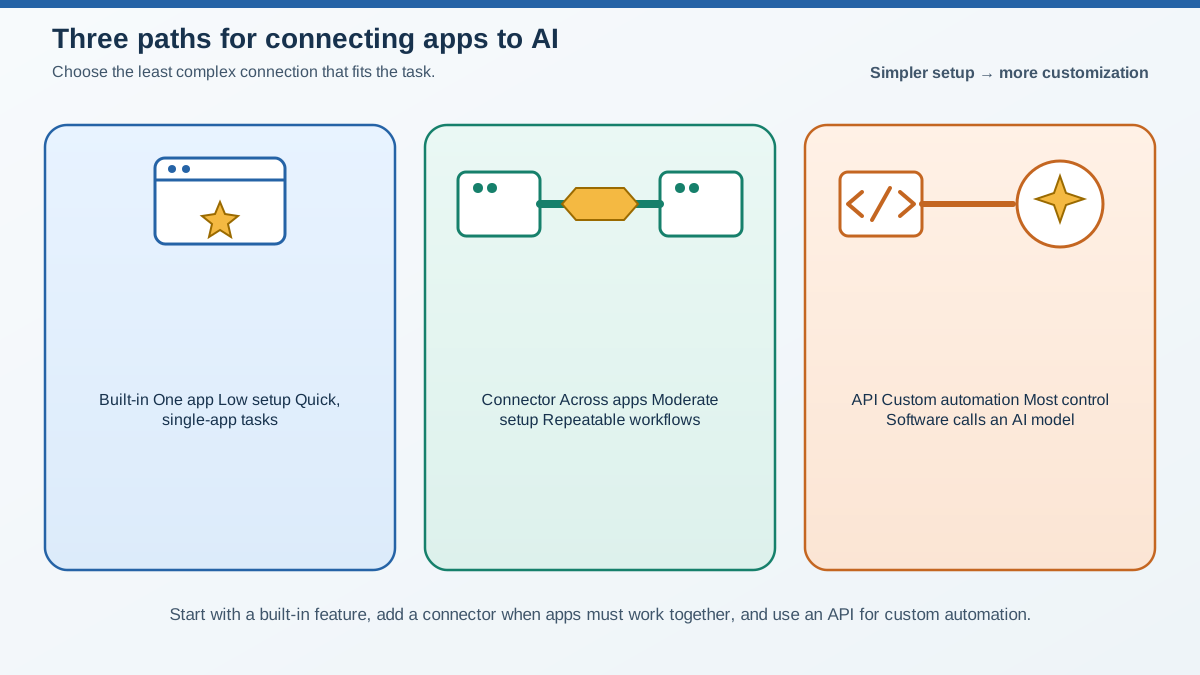
Before you start clicking, it helps to have a map. Almost every AI tool integration you will encounter uses one of three paths:
| Path | What it is | Example |
|---|---|---|
| Built-in features | AI already embedded inside an app | An AI assistant inside a document editor or spreadsheet |
| Connectors and plugins | A middle layer linking your chat tool to other apps | A plugin that lets your chat tool draft emails in your inbox |
| APIs | The technical bridge that lets software talk to an LLM directly | A custom script that sends prompts to a model and gets structured results back |
A simple analogy: built-in features are like appliances that ship with the kitchen. Connectors are adapters that let your existing appliance plug into a different outlet. An API is the plumbing behind the wall—powerful, invisible, and not something you usually need to touch.
One caveat: these paths are not fully separate. Connectors still rely on APIs underneath. Think of the three paths as different levels of directness, not completely different systems.
Knowledge check
Check your understanding
Answer this question before you continue.
Start with Built-In Integrations
The lowest-friction way to connect AI to your apps is to use the AI that is already inside them. Many everyday tools now include AI features directly: document editors that draft or summarize text, spreadsheets that explain formulas, email clients that polish drafts, and design tools that generate or refine visual ideas.
Here is a concrete example. Suppose you are writing a project update in a document editor that has a built-in AI assistant. Instead of copying your draft into a separate chat tool, you highlight the section, ask the assistant to make it more concise, and review the suggestion in place. The AI already has the context of your document. No setup. No new accounts. No copy-paste.
The benefit is obvious: zero friction. The tradeoff is that built-in features are usually narrower than a full chat tool. They are optimized for specific tasks inside one app, not for open-ended conversation across your whole workflow.
Common mistake: Assuming the built-in AI in an app is the same as your full chat tool. It is usually a narrower slice—good at the tasks the app was designed for, less capable as a general assistant.
Decision rule: Start with built-in features when the task lives entirely inside one app and the built-in feature covers it. That covers a surprising amount of everyday work.
Knowledge check
Check your understanding
Answer this question before you continue.
Use Connectors to Link Your Chat Tool to Other Apps
When your task crosses app boundaries, you need a connector. A connector gives your chat tool permission to read from and write to another app—drafting an email in your inbox, summarizing a document stored in the cloud, or turning meeting notes into a spreadsheet.
Many chat platforms and productivity suites offer these connections through official plugins or app stores. You browse, install, and approve what the AI can access. The connector handles the technical work of translating between your chat tool and the target app.
The permission model is simple: you approve what the AI can access, and you can revoke it later. That control matters.
Common mistake: Granting broad access without checking what the connector can read. Before you connect an AI tool to your email or documents, look at the permission screen. If it asks for more access than the task needs, that is a signal to reconsider.
My rule: Start with the narrowest permission that does the job. Expand only when a task demands it.
Connectors shine for everyday productivity tasks: summarizing a long thread, drafting a reply, pulling action items from a meeting transcript, or turning rough notes into a structured document. They are not the right tool for heavy custom automation—if you need a workflow that runs on its own with specific logic, you are moving toward API territory.
Knowledge check
Check your understanding
Answer this question before you continue.
When You Need an API (and When You Don't)
API stands for Application Programming Interface. In plain language, it is a standard way for one piece of software to request work from another. When an app sends a prompt to an LLM and gets a structured result back, an API is what makes that conversation possible.
APIs also power something called function calling. This is where the model can request an external action—checking the weather, updating a calendar, querying a database—and receive live data in return. Instead of just generating text, the model can reach out and touch other systems.
Here is the reassurance: you rarely need to touch an API yourself. Connectors and built-in features handle it for you. APIs matter when you want custom automation or when you are building your own tool. If you are a beginner connecting ChatGPT to your calendar, you do not need to write code.
The honest tradeoff: APIs give the most control and the most setup. You need to manage keys, handle errors, and think about how your requests are structured. Beginners usually do not need that control yet.
Decision rule: Use built-ins for single-app tasks. Use connectors for cross-app productivity. Move to APIs only when you are ready to build something custom—and by then, you will know why you need it.
A Simple Integration Workflow to Try Today
Let us make this concrete. Pick one task you already do regularly—drafting, summarizing, or organizing—and complete it with an AI tool connected to the app where the work lives.
Here is a step-by-step path:
- Pick the app. Choose something you use daily: your email, your document editor, your spreadsheet tool.
- Find its AI feature or connector. Look for an AI assistant icon inside the app, or check the plugin store for your chat tool.
- Approve access. Read the permission screen. Grant only what the task needs.
- Run one real task. Use the integrated AI to do something you would normally copy-paste into a separate chat window.
- Inspect the result. Compare the integrated flow against your old copy-paste routine. Notice the difference in friction.
Normal mistake: Expecting the first integrated output to be perfect. The real win is not a flawless result—it is the smoother workflow. You can always refine the output in place, without the round trip.
After you run this once, ask yourself a reflection question: which step in your daily routine still forces you to switch tools? Could an integration remove that switch?
That question is the heart of AI workflow automation. It is not about finding the most impressive AI demo. It is about finding the places where you are doing manual carrying work and letting the connection do it instead.
Integration is the shift from treating AI as a separate window to treating it as part of the tools where work already happens. Start with built-in features. Move to connectors when you need cross-app reach. Treat APIs as a later step, only if you want to build custom automation.
Try one integration today. Pick a task you do every day, connect the AI to the app where it lives, and feel the difference of not carrying text by hand. That is the moment the mental model clicks—and once it does, you will start seeing integration opportunities everywhere.
Knowledge check
Final check
Finish the article by checking the ideas you just learned.
References
Want a more structured LLMOps path?
Use the LLMOps Practical Starter Bundle to connect RAG, evaluation, observability, and production patterns.
Large Language Models Starter Pack
A 12-chapter guide connecting LLM fundamentals with prompting, RAG, agents, tool calling, evaluation, security, and application engineering.
- 227-page Illustrated PDF edition
- 12 guided LLM engineering chapters
- Visual concept diagrams
- Self-assessment quizzes
- Bonus deep-dive sections
- Prompt design, structured output, context windows & RAG pipelines
- Agents, tool calling, prompt injection, evaluation & application lifecycles
Coming soon


