
Using Google Gemini
Gemini is two things at once: Google's family of AI models and the chatbot that lets you talk to them. For your first session, you don't need to care about…

Key topics
Gemini is two things at once: Google's family of AI models and the chatbot that lets you talk to them. For your first session, you don't need to care about the difference—you just need a Google account and something you actually want done.
What Gemini Is (and the Confusion Around the Name)
Here's the confusing part: "Gemini" refers to both the underlying AI models Google builds and the chatbot app you interact with. When you open the chatbot, you're using one of those models, but you rarely need to know which one. Think of it like a car: you drive the car without worrying about which engine variant is under the hood.
This guide covers the chatbot—the thing you open in a browser or on your phone. If you're still deciding whether Gemini is the right tool for your needs rather than another option, that's a separate choice worth making first. Once you've decided to try it, the rest of this guide gets you running.
Gemini is a large language model (LLM), which is a fancy way of saying it's a system trained on enormous amounts of text that can read and generate human language. In plain terms, it can:
- Answer questions on topics you type out
- Summarize long articles, documents, or meeting notes
- Brainstorm ideas when you're stuck
- Draft emails, posts, or other writing
- Analyze images and files you upload
What makes Gemini interesting compared to a plain text chatbot is that it's multimodal: it can work with images, audio, and documents, not just typed words. You'll see what that means in practice shortly.
Knowledge check
Check your understanding
Answer this question before you continue.
What You Need Before You Start
The good news: getting started with Google Gemini requires almost nothing.
- A Google account. This is the main requirement. If you have Gmail, you already have one.
- A browser or phone. Gemini works at gemini.google.com in any modern browser, and there's a mobile app for Android and iOS.
- No installation or coding. The basic chatbot experience is free and requires zero technical setup.
There are a few access wrinkles worth knowing about before you begin:
Free vs. paid. The free tier handles everyday tasks like answering questions, summarizing text, and drafting writing. Start there. Move to a paid plan only when a specific limit blocks a task you actually need—for example, if you regularly hit the free tier's usage caps or need a larger context window for long documents.
Work or school accounts. If you're using a Google account managed by an employer or school, an administrator may have disabled Gemini access. If you sign in and see nothing useful, that's likely why. The fix is simple: try again with a personal Gmail account.
The interface changes over time. Google updates Gemini's menus, model names, and features regularly. Don't memorize the buttons—learn the workflow. The core pattern stays the same even when the labels shift.
Knowledge check
Check your understanding
Answer this question before you continue.
Your First Session: Sign In and Ask Something Useful
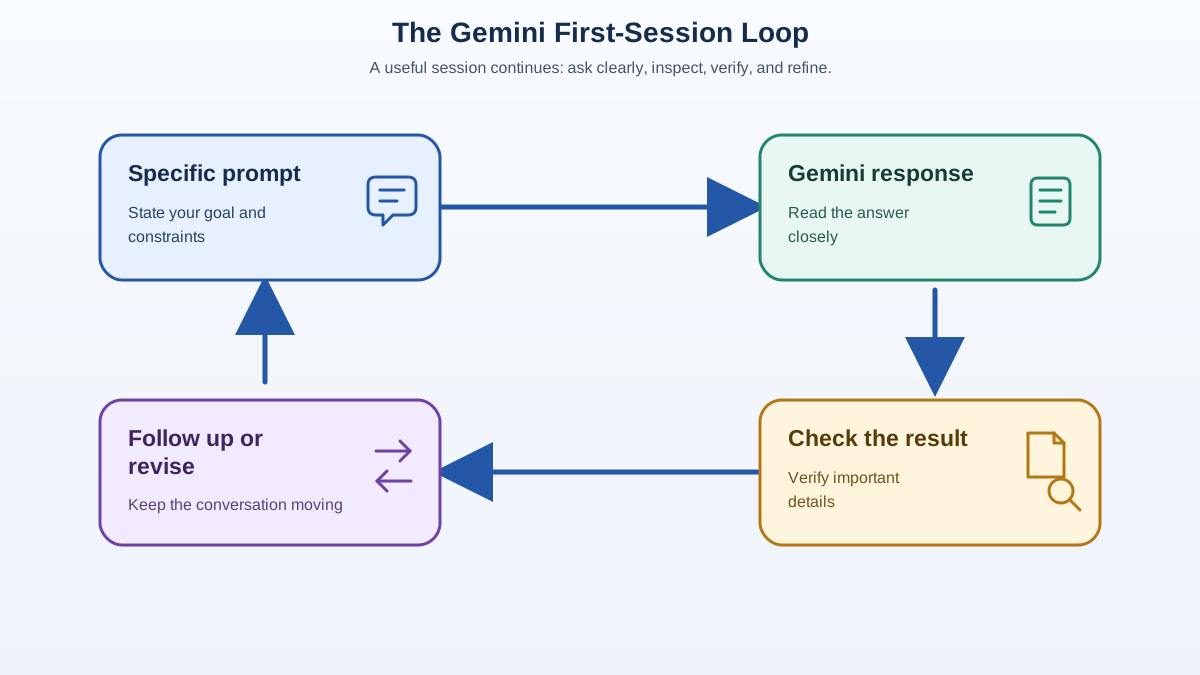
Let's get you a visible win in the next five minutes.
Step 1: Open Gemini. Go to gemini.google.com in your browser. If you're not already signed in to a Google account, click the sign-in button and enter your credentials.
Step 2: Find the prompt box. You'll see a text field near the bottom of the screen. That's where you type your request. In the AI world, what you type is called a prompt—it's simply the instruction or question you give the model.
Step 3: Ask something specific. This is where most beginners stumble. A vague prompt like "help me with email" produces a vague answer. A concrete request produces something you can actually use.
Try this: paste a paragraph you've been meaning to rewrite and ask:
Summarize this paragraph in three sentences, keeping the key facts.
Or if you have a real task on your mind:
Draft a short email to my landlord asking for a repair to the kitchen sink. Keep it polite and include my apartment number.
Step 4: Look at what you got. A good response should be relevant, reasonably accurate, and something you can act on. You're not looking for perfection—you're looking for a useful starting point.
Step 5: Keep the conversation going. This is the part people miss. Gemini keeps track of the current conversation, so you can refine without starting over. If the email draft is too formal, type: "Make it more casual." If the summary missed a detail, say: "Add the deadline mentioned in the original text."
Note: Gemini's context is limited to the current conversation. It doesn't permanently remember facts about you across chats, and it can lose track of earlier details in a long exchange. If accuracy matters, restate important requirements in your follow-up rather than assuming it remembers everything.
After Gemini responds, you have several options:
- Edit your prompt to clarify what you wanted
- Ask a follow-up to refine the answer
- Regenerate to get a fresh attempt at the same prompt
- Copy the response to use it elsewhere
- Share the response with someone else
Success criteria: You asked a concrete question, got a relevant answer you can act on, and successfully continued the conversation with a follow-up. If you did those three things, your first session worked.
Knowledge check
Check your understanding
Answer this question before you continue.
An Optional Second Task: Upload a File and Ask About It
Once your text session works, here's where Gemini starts to feel less like a search box and more like a capable assistant. You can upload files and ask questions about their contents.
Why this matters: when you upload a PDF, the service receives the file and includes its content in the context for your conversation. That means you can ask Gemini to summarize the document, pull out specific facts, or answer questions about what's inside.
Let's try one concrete example:
Step 1: Find any PDF on your computer—a report, a manual, an article you've been meaning to read.
Step 2: Click the plus icon (+) near the prompt box. Choose "Upload files" and select your PDF from your computer.
Step 3: Type a question about the document. For example: "What are the three main points of this document?" or "Summarize this in five bullet points."
Step 4: Read the response and check it against the actual document. Does the summary match? Can you find the points it mentioned?
Common mistake: Treating a successful upload as proof that Gemini understood every page. Long or complex documents can exceed what fits in the context, and the model can miss or misinterpret details. For anything important, ask Gemini to reference specific sections or page numbers, then verify those spots yourself.
This capability is genuinely useful for real work. Staring at a 40-page report? Ask Gemini to summarize it before you dive in. But treat its summaries as a starting point, not a replacement for reading the source yourself.
Knowledge check
Check your understanding
Answer this question before you continue.
Common First-Run Mistakes and How to Recover
Every beginner hits the same walls. Here's what's normal and how to get past it.
Mistake 1: Vague prompts produce vague answers. If you ask "write something about marketing," you'll get generic filler. The fix is specificity. Add constraints: the audience, the length, the tone, the goal. "Write a 100-word Instagram caption about our new coffee blend, aimed at busy professionals who want quality at home" will get you something you can actually use.
Mistake 2: Trusting the output blindly. LLMs can be confidently wrong. They generate plausible-sounding text, and sometimes that text is incorrect. This isn't a bug you can fix—it's a limitation of how these systems work. For anything important, fact-check Gemini's answers against reliable sources. My rule: use Gemini to draft and explore, but verify before you rely on it.
Mistake 3: Giving up after one bad answer. If Gemini misses the mark, don't start over. Edit your prompt with more detail, or ask a clarifying follow-up. "That's not what I meant—I need the version for a customer, not an internal team" often gets you closer. The conversation is the tool; use it.
Mistake 4: Panicking when the interface looks different than a tutorial. Google changes Gemini's interface regularly. Model names change. Menus move. Buttons get renamed. If you can't find a feature mentioned in a guide, look for the closest current equivalent. The underlying workflow—type a request, refine the response, upload files when needed—stays stable.
Mistake 5: Being blocked by a work account. If Gemini won't load or you get a restriction message, your workplace or school may have disabled access. This is an administrator decision, not something you can fix from your end. Use a personal Google account instead.
Where to Go Next After Your First Success
You now have a working Gemini session and a concrete first win. The natural next step isn't learning more features—it's getting better at the one skill that determines how useful every AI tool feels: writing effective prompts.
Learning to structure your prompts with clear context, specific constraints, and a defined output format will improve every AI tool you use, not just Gemini. But remember the boundary: prompting improves clarity and format. Verification and source checking determine whether the result is safe to rely on. Use Gemini to draft, transform, and explore. Verify before you depend on the answer.
After you're comfortable with prompting, there's a deeper layer worth knowing about: Gemini also offers a developer API. That's how you'd build your own tools and automations on top of the same models. That's a later step for curious builders, but it's good to know the path exists.
The progression looks like this:
- Chatbot first. Hold useful conversations and complete real tasks.
- Prompting skills second. Learn to structure requests for reliable results.
- Building with the API third. Create your own tools when you're ready.
You've completed step one. The next session, try giving Gemini a real task from your own life—an email you need to send, a document you need to understand, a problem you need to think through. The more you practice asking clearly, the more you'll get back.
Knowledge check
Final check
Finish the article by checking the ideas you just learned.
References
Want a more structured LLMOps path?
Use the LLMOps Practical Starter Bundle to connect RAG, evaluation, observability, and production patterns.
Large Language Models Starter Pack
A 12-chapter guide connecting LLM fundamentals with prompting, RAG, agents, tool calling, evaluation, security, and application engineering.
- 227-page Illustrated PDF edition
- 12 guided LLM engineering chapters
- Visual concept diagrams
- Self-assessment quizzes
- Bonus deep-dive sections
- Prompt design, structured output, context windows & RAG pipelines
- Agents, tool calling, prompt injection, evaluation & application lifecycles
Coming soon


