
Using Open Source LLMs
Running an open source LLM on your own machine today feels closer to installing a desktop app than building a neural network. You don't need a data center,…

Running an open source LLM on your own machine today feels closer to installing a desktop app than building a neural network. You don't need a data center, a research lab, or a deep learning PhD. You need a laptop, a free tool, and about ten minutes.
By the end of this guide, you'll have a working language model running locally on your own hardware. You'll be able to type a question, get an answer, and know exactly where that answer came from—your machine, not someone else's servers.
What "Open Source LLM" Really Means
If you've used ChatGPT or Gemini, you already know what a large language model does. You type a prompt, and it generates a response. The difference with an open source LLM comes down to one question: where does the model live?
A closed model like GPT or Gemini lives on the provider's servers. When you send a prompt to ChatGPT, your text travels across the internet, gets processed on OpenAI's infrastructure, and the response travels back. You never see the model itself. You only see the interface they give you.
An open source LLM is different. The model's trained weights—the actual learned patterns that make it generate text—are publicly released so anyone can download them and run the model on their own hardware. Instead of sending your prompts to someone else's servers, the model runs on your machine.
Think of it like the difference between streaming a movie and owning the file. Streaming is convenient, but you need an internet connection and the service decides what you can watch. Owning the file means it's yours. You can watch it offline, and nobody else is watching over your shoulder.
One boundary worth knowing before we go further: "open source" means different things for different models. Some models are fully open, including their training code and data. Others are better described as "open weights"—you can download and run them freely, but the license may restrict commercial use or redistribution. For this guide, the practical distinction that matters is locally runnable: you download the model and run it on your own hardware. If you plan to build a product or redistribute a model, check its license first.
The tradeoff is real: open source models can lag behind the newest frontier models from major labs, and you handle the setup yourself. But for many tasks—especially anything involving private data or repeated use—running a model locally is a compelling option.
Knowledge check
Check your understanding
Answer this question before you continue.
Why Run a Model Yourself?
There are four practical reasons people choose to run open source LLMs, and they all come down to the same theme: control.
Privacy. When you run a model locally, your prompts are processed on your machine rather than sent to a provider's servers. That's a meaningful advantage if you're working with sensitive information—personal notes, business documents, anything you'd rather not share. One honest caveat: local execution gives you the potential for privacy, not an automatic guarantee. Check your tool's settings and avoid optional features that phone home, especially if you're handling truly sensitive data.
Cost. Hosted models typically charge per token, which means every conversation has a price tag. Running an open source model locally means you pay once for your hardware and electricity. Heavy usage doesn't generate surprise bills.
No vendor lock-in. When you rely on a hosted service, you're tied to that company's roadmap, pricing, and availability. If they change their terms or discontinue a feature, you adapt. With a local model, the model files live on your machine. Nobody can take them away or change how they work.
Customization freedom. Open source models can be fine-tuned on your own data or adjusted for specific tasks. That's a future step—you don't need it to get started—but it's worth knowing the door is open.
The honest counterpoint: open source models often aren't quite as capable as the newest frontier models, and you're responsible for your own setup and maintenance. For a beginner exploring what these models can do, that tradeoff is usually worth it.
Knowledge check
Check your understanding
Answer this question before you continue.
What You Need Before You Start
Here's the part where most people assume they're blocked. Let me clear that up.
You do not need to understand model architecture, parameters, or quantization. You do not need a powerful GPU. You do not need to read any research papers.
Here's what you actually need:
- A reasonably modern laptop or desktop computer
- At least 8GB of RAM as a rough starting point (16GB is more comfortable)
- An internet connection for the initial download
- About 10 minutes of patience
The key insight is that model size maps to hardware requirements. A model has to fit in your machine's memory to run, and bigger models need more memory and respond more slowly. Smaller models run fine on everyday laptops. For your first experiment, you'll start small—and small is more than enough to learn the workflow.
The tool that makes this possible is called Ollama. It's a free, beginner-friendly application that handles downloading models and running them. No command-line expertise required, no machine learning background needed. If you can install a desktop app, you can use Ollama.
Your success criterion for this guide is simple: by the end, you'll have a model running locally on your machine that answers your prompts.
Knowledge check
Check your understanding
Answer this question before you continue.
Step-by-Step: Run Your First Open Source Model
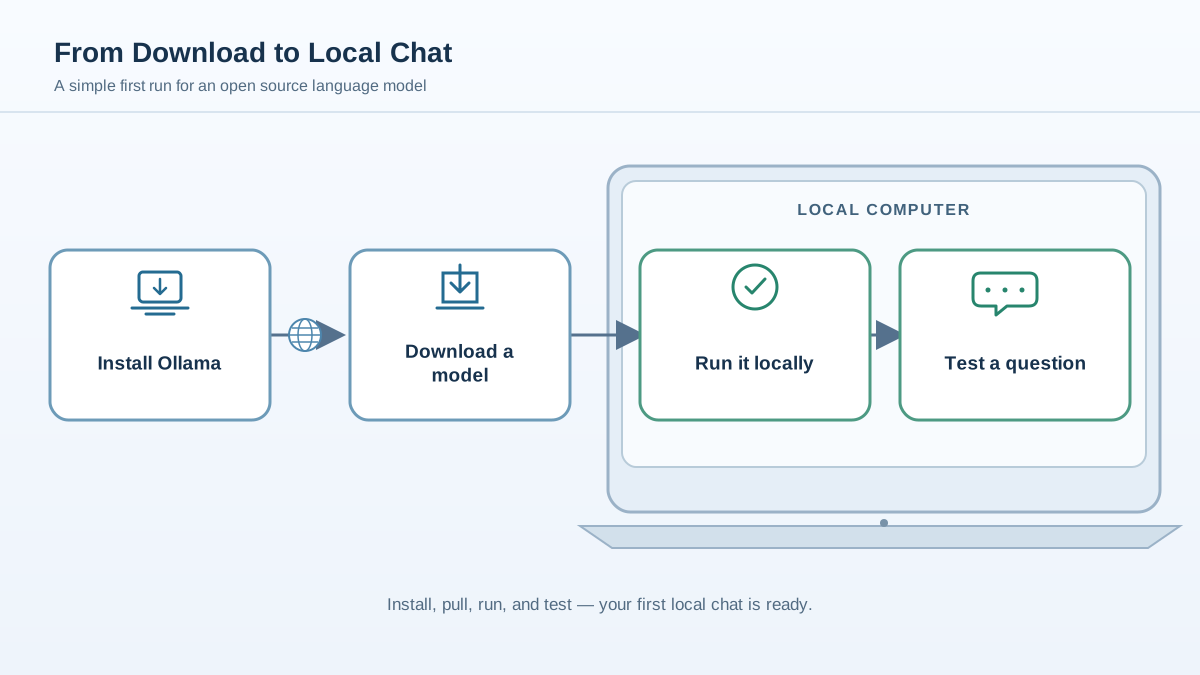
Let's get you up and running. The whole process takes about ten minutes.
Step 1: Install Ollama
Head to the official Ollama website and download the installer for your operating system. Ollama works on macOS, Windows, and Linux. Install it like you would any other application.
Once installation finishes, you'll have access to a terminal command called ollama. On macOS and Linux, open your terminal. On Windows, open PowerShell or Command Prompt.
Before pulling a model, run this quick check to confirm the tool is ready:
ollama --version
If you see a version number, you're good to go. If you get a "command not found" error, the Ollama application may need to be opened once first, or your terminal may need to be restarted so it picks up the new command. On macOS, you may also need to open Ollama from your Applications folder once to finish setup.
Step 2: Pull a Model
Models are downloaded with a single command. Open your terminal and run:
ollama pull llama3.2
This tells Ollama to download the Llama 3.2 model. The name might look cryptic, but it's just the model's identifier. Think of it like a package name.
The download size depends on the model—smaller models are a few gigabytes, larger ones can be much bigger. Grab a coffee while it downloads.
Note: Model names and versions change over time as new models are released. If
llama3.2isn't available when you try this, check the Ollama model library for the current recommended small model. The workflow stays the same even if the exact name differs.
Step 3: Start Chatting
Once the download finishes, start a chat session:
ollama run llama3.2
You'll see a prompt appear. That's your model, running on your machine, waiting for input.
Type a simple question to test it:
What is the capital of France?
The model will respond. You're now having a conversation with a language model that lives on your hardware.
Knowledge check
Check your understanding
Answer this question before you continue.
Step 4: Confirm It Works
Your success criterion is simple: the model gave you a sensible reply to a basic question. If it did, you've successfully set up and used an open source LLM.
Type /bye to exit the chat session whenever you're ready.
Common First-Run Problems (and Fixes)
If something didn't work, don't panic. These are normal, recoverable issues that almost everyone hits on their first run.
Slow responses. If the model takes a long time to answer, it's probably too large for your hardware. The fix is simple: switch to a smaller model. Pull something like phi3 instead, which is designed to run on modest hardware.
Out-of-memory errors. Same root cause, different symptom. Your machine doesn't have enough RAM to hold the model. Switch to a smaller model and try again.
Model not found. Model names are case-sensitive and change over time. If you get an error saying the model doesn't exist, check the Ollama model library for the current name and pull that instead.
No internet during download. The initial pull requires a connection because the model files need to be downloaded. Once the model is on your machine, you can run it without an internet connection—but remember that the download step itself needs the network.
Every one of these is a normal part of the learning curve. The fix is almost always "try a smaller model" or "check the model name." You didn't break anything.
The Experiment That Teaches You the Most
Now that you have a working local model, run one final test before you explore further. Take a prompt you used with your local model and send the same prompt to a hosted tool like ChatGPT. Compare the responses.
You'll likely notice differences in quality, tone, and detail. That comparison isn't a judgment—it's information. It shows you what each approach does well, and it helps you decide when running a model yourself is worth it.
Here's the decision rule I use:
- Choose a local model when your data is sensitive, you need to work offline, you're doing repeated or automated work, or you want full control over the model.
- Choose a hosted tool when you want the best possible answer quality, you need zero setup and maintenance, or you're doing occasional tasks where convenience matters more than control.
That's the real skill you're building: not just knowing how to use open source LLMs, but knowing when they're the right tool for the job. You've taken the first step. The model is running on your machine, answering your questions, waiting for your next experiment.
Knowledge check
Final check
Finish the article by checking the ideas you just learned.
References
Want a more structured LLMOps path?
Use the LLMOps Practical Starter Bundle to connect RAG, evaluation, observability, and production patterns.
Large Language Models Starter Pack
A 12-chapter guide connecting LLM fundamentals with prompting, RAG, agents, tool calling, evaluation, security, and application engineering.
- 227-page Illustrated PDF edition
- 12 guided LLM engineering chapters
- Visual concept diagrams
- Self-assessment quizzes
- Bonus deep-dive sections
- Prompt design, structured output, context windows & RAG pipelines
- Agents, tool calling, prompt injection, evaluation & application lifecycles
Coming soon


