
Getting Started with ChatGPT
You're staring at a blank chat box. The cursor blinks. Somewhere in the back of your mind, a voice whispers: What if I type something wrong? What if this…

You're staring at a blank chat box. The cursor blinks. Somewhere in the back of your mind, a voice whispers: What if I type something wrong? What if this thing thinks I'm an idiot?
Here's the secret nobody tells you before you start: there is no wrong way to have a conversation. And that's all ChatGPT is—a conversation. Not a test. Not an exam you can fail. Just a tool you direct, one message at a time.
By the end of this guide, you'll have completed one small, genuinely useful task with ChatGPT. You'll know what it is, what it isn't, and exactly what to do when the first reply misses the mark. Let's get you started.
What ChatGPT Actually Is (and Isn't)
Before you type your first message, it helps to have an accurate picture of what you're talking to.
ChatGPT is a conversational AI assistant. Under the hood, it's built on something called a large language model—a system trained on enormous amounts of text that learns patterns in language. When you give it a prompt (the question or instruction you type), it predicts a useful response based on those patterns.
Think of it this way: you're the director. ChatGPT is a capable, eager assistant who needs clear instructions. It doesn't know what you want until you say it, and it won't be offended if you ask for a rewrite.
Two things ChatGPT is not:
It's not a search engine. ChatGPT doesn't browse the live web by default. It generates responses from what it learned during training, which means it can be confidently wrong about recent events or niche facts. If you need current information, you may need to enable web search or check its answers against another source.
It's not an oracle. It doesn't have hidden knowledge or special access to truth. It's a pattern-matching engine that produces plausible-sounding text. Sometimes that text is brilliant. Sometimes it's confidently incorrect. Your judgment is the filter that separates the two.
Keep that director-and-assistant frame in your head. It will save you from the two biggest beginner frustrations: expecting perfection and giving up after one weak answer.
Knowledge check
Check your understanding
Answer this question before you continue.
What You Need Before You Start
Good news: the barrier to entry is almost nonexistent.
- An email address (or a Google/Microsoft account you can use to sign in)
- An internet connection
- About five minutes
You can use ChatGPT in a web browser on your computer, or download the mobile app for your phone. For this guide, a browser is the simplest place to start—everything works the same way, and you don't need to install anything.
One honest caveat: features, models, and pricing tiers change over time. The interface you see today might look slightly different next year. That's fine. The core workflow—type a message, read the reply, refine—stays the same. This guide focuses on the stable basics that won't leave you stranded when the interface shifts.
Success criterion: You can reach a screen where ChatGPT is ready to talk to you.
Creating Your Account and Opening a Chat
Let's get you in the door.
- Go to the ChatGPT website in your browser.
- Click the sign-up button. You'll see options to sign up with an email address or continue with a Google/Microsoft account. Either works. If you already have a Google account, that's the fastest path.
- Verify your email if you signed up with one. Check your inbox for a confirmation link.
- Log in.
If the sign-in flow looks different from what's described here, don't worry. Use the current options you see, and continue once you can open a new chat.
When you land on the main screen, you'll notice something convenient: a new chat is already waiting for you. There's nothing to configure, nothing to set up, no dashboard to learn. OpenAI designed this to be as close to opening a messaging app as possible.
Look at the screen and find three things by function:
- The message bar at the bottom—this is where you type. It's the text box with a send button.
- The conversation pane in the middle—this is where the back-and-forth appears.
- The "new chat" option—usually a button or icon that starts a fresh conversation when you want one.
That's the whole interface for now. You don't need settings, menus, or advanced options to do something useful.
Success criterion: You can see an empty conversation and a message bar ready for your first prompt.
Knowledge check
Check your understanding
Answer this question before you continue.
Your First Prompt: A Quick Demonstration
A prompt is simply the question or instruction you type to start the conversation. That's it. You've been writing prompts your whole life—you just called them questions, requests, or instructions.
Here's a starter prompt you can type verbatim right now:
Explain the concept of "supply and demand" like I'm a complete beginner. Use a simple example.
Press send. Watch the reply stream in.
What just happened? You gave ChatGPT three things: a topic, an audience, and a format. That's the entire trick to getting useful responses. A vague prompt like "tell me about economics" returns a vague answer. A specific prompt returns something you can actually use.
You can prompt with more than text on many versions of ChatGPT—images, audio, and files are all fair game. But text is the right place to start. It's the clearest way to learn how the tool thinks and responds.
Success criterion: ChatGPT returns a relevant reply you can read and understand.
Knowledge check
Check your understanding
Answer this question before you continue.
What to Do With the Reply
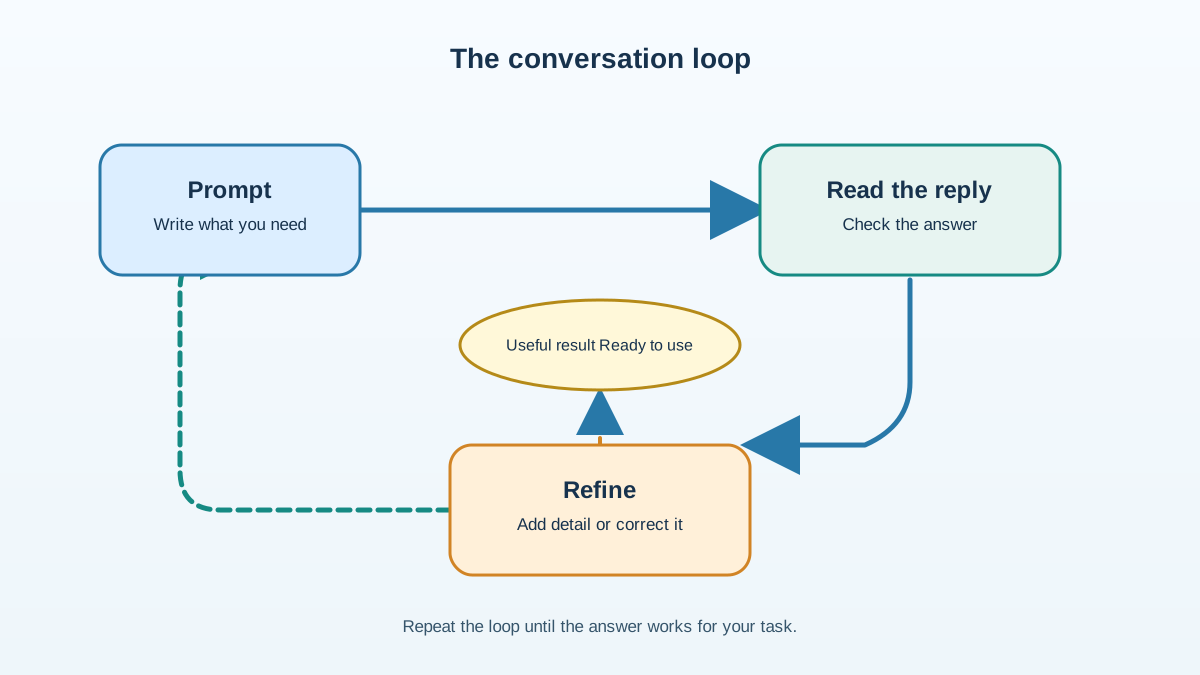
Here's where most beginners make their first mistake: they treat ChatGPT's answer as final. It's not. It's a starting point.
The reply you just received is raw material. Your judgment is what turns it into something usable. And the way you apply that judgment is through the conversation itself.
Try one of these follow-ups:
- "Make it shorter."
- "Explain it more simply."
- "Give me another example."
- "Can you make this friendlier?"
ChatGPT remembers the thread, so you can build on earlier answers without repeating yourself. Each message adds context, and each reply should get closer to what you actually want.
If the first reply completely misses the mark, look for a regenerate option—usually an arrow or refresh icon near the response. It produces a different take on the same prompt. Think of it as asking the assistant to try again with a fresh approach.
Here's the reframe that will save you hours of frustration: a weak answer isn't a failure. It's evidence. It tells you your prompt was too vague, or the format was unclear, or you need to add context. Adjust and try again. That revision loop—prompt, read, refine—is the real skill you're building here.
Normalize imperfection. If ChatGPT gets something wrong or gives you a confusing answer, that's normal and fixable. You didn't break anything. You didn't do it wrong. You just learned something about how to direct the tool better.
Knowledge check
Check your understanding
Answer this question before you continue.
When to Trust ChatGPT (and When to Verify)
Here's the one rule that will save you the most trouble: specificity improves usefulness, but it doesn't guarantee truth.
A clearer prompt gets you a more relevant, better-formatted answer. It does not make the answer factually correct. ChatGPT can sound confident while being wrong, especially about recent events, niche topics, or anything requiring up-to-date information.
So use this decision rule:
- Use ChatGPT for low-stakes drafts, brainstorming, rewrites, and explanations. These are starting points you'll shape with your own judgment.
- Verify before relying on it for current events, financial decisions, medical advice, legal questions, or anything else with real consequences. Check its claims against a trusted source.
That distinction matters more than any single feature. ChatGPT is a thinking partner, not a fact-checker. Your judgment is the filter that decides which is which.
Common First-Run Mistakes (and How to Recover)
Let's walk through the stumbles that trip up nearly every beginner—and exactly how to recover from each one.
Mistake 1: Expecting a search-engine answer about current events.
You ask who won last night's game, and ChatGPT gives you a confident answer that's completely wrong. That's not a bug; it's the tool working as designed. ChatGPT may not know recent news unless web search is enabled.
Recovery: Check the date. If you need current information, look for a web search option in the interface, or verify ChatGPT's answer against a search engine.
Mistake 2: Giving up after one weak answer.
The first reply was generic, off-target, or just not what you wanted. You conclude ChatGPT isn't useful.
Recovery: Rephrase. Add detail. Specify the format. "That was too general—can you focus specifically on X?" Nine times out of ten, a more specific prompt fixes the problem.
Mistake 3: Worrying about "breaking" the tool.
You're afraid to experiment because you might mess something up.
Recovery: You can't. Asking questions and trying prompts causes zero damage to the tool itself. The worst possible outcome is an unhelpful reply, and you already know how to handle that.
Mistake 4: Sharing sensitive personal information.
ChatGPT conversations can be used to improve the service, so treat the chat box like a semi-public space.
Recovery: Don't paste passwords, financial details, private medical information, or anything you wouldn't want read back to you. Use fake names and anonymized details when you're testing ideas.
Common mistake: Treating ChatGPT like Google. It's a conversation partner, not a search index. When you need facts, verify them. When you need a starting point, brainstorm, or draft, ChatGPT shines.
Your First Small Task: Draft an Email
Time to put it all together. Here's one complete task that will prove the setup worked and leave you with something genuinely useful.
The task: Draft a short email you actually need to send.
Maybe it's a message to your landlord about a repair. A note to a coworker about a meeting. An email to a friend you've been meaning to catch up with.
Type this prompt, filling in the brackets:
Help me draft a polite email to my [landlord/coworker/friend] about [the specific situation]. Keep it under 150 words and use a friendly but professional tone.
Read the reply. It's probably pretty good—but it's not done. Now apply the conversation loop:
- Too formal? Say: "Make it more casual."
- Too long? Say: "Cut it down to three sentences."
- Missing a detail? Say: "Add that I'm available on Thursday afternoon."
Keep refining until you have something you'd actually send. That's the success criterion: you finish with a piece of output you could use or share.
Notice what just happened. You didn't learn a bunch of abstract rules about prompting. You directed a tool, read its output, made adjustments, and ended with something useful. That's the entire skill.
Where to Go Next
You've completed your first task. The setup works. The mental model is in place. Now the real learning begins.
Your natural next step is to try a second task—something slightly more ambitious. Ask ChatGPT to brainstorm ideas for a project. Have it summarize a long article you've been meaning to read. Ask it to explain a concept you've never quite understood.
The more you practice the loop—prompt, read, refine—the better you'll get at directing the tool. And the better you get at directing it, the more you'll notice where it helps and where it doesn't.
Some tasks will feel like magic. Others will remind you that this is a pattern-matching engine with real limits. Both reactions are correct. The skill is learning which is which.
So go find your second task. The blank box is waiting, and now you know exactly what to do with it.
Knowledge check
Final check
Finish the article by checking the ideas you just learned.
References
Want a more structured LLMOps path?
Use the LLMOps Practical Starter Bundle to connect RAG, evaluation, observability, and production patterns.
Large Language Models Starter Pack
A 12-chapter guide connecting LLM fundamentals with prompting, RAG, agents, tool calling, evaluation, security, and application engineering.
- 227-page Illustrated PDF edition
- 12 guided LLM engineering chapters
- Visual concept diagrams
- Self-assessment quizzes
- Bonus deep-dive sections
- Prompt design, structured output, context windows & RAG pipelines
- Agents, tool calling, prompt injection, evaluation & application lifecycles
Coming soon


